change permissions for a folder and its subfolders/files

The other answers are correct, in that chmod -R 755 will set these permissions to all files and subfolders in the tree. But why on earth would you want to? It might make sense for the directories, but why set the execute bit on all the files?

I suspect what you really want to do is set the directories to 755 and either leave the files alone or set them to 644. For this, you can use the find command. For example:

To change all the directories to 755 (drwxr-xr-x):

find /opt/lampp/htdocs -type d -exec chmod 755 {} \;

To change all the files to 644 (-rw-r--r--):

find /opt/lampp/htdocs -type f -exec chmod 644 {} \;

Some splainin': (thanks @tobbez)

  • chmod 755 {} specifies the command that will be executed by find for each directory
  • chmod 644 {} specifies the command that will be executed by find for each file
  • {} is replaced by the path
  • ; the semicolon tells find that this is the end of the command it's supposed to execute
  • \; the semicolon is escaped, otherwise it would be interpreted by the shell instead of find

https://stackoverflow.com/a/11512211

Cannot open the disk on Powering on a virtual machine

I finally found a solution for this. Stop the VM, and check the drive images…

vmkfstools -x check "hassos_ova-3.10.vmdk"

If it says “Disk needs repaired” (which mine did), then repair it.

I dont think repair implies the disk image is damagaed, it just implies that some disk config is not as it should be

> vmkfstools -x repair "hassos_ova-3.10.vmdk"
Disk was successfully repaired

Now we need to convert the disk image to VMFS, since it was created from a desktop version of VMWare and the disk image does not support snapshots…

> vmkfstools -i "hassos_ova-3.10.vmdk" "hassos_new-3.10.vmdk"

Destination disk format: VMFS zeroedthick
Cloning disk 'hassos_ova-3.10.vmdk'...
Clone: 100% done.

Now unregister the hassos_ova-3.10.vmdk disk from your hassos VM Image (do not delete the files just yet)

Attach the newly converted hassos_new-3.10.vmdk image leaving the settings as default

Fire up your VM. You may find the vm refuses to boot, but skip past this with F1

You may get a 2nd warning suggesting the disk may need partioning. Ignore this and hit ‘m’ to boot into the menu like it suggests

At this point it boots you into the ha shell prompt and after a little while home assistant should be up and running

Once you have checked everything is working, you can delete the old disk image hassos_ova-3.10.vmdk (there may be secondary images such as hassos_ova-3.10-s001.vmdk which can be deleted also)

You can now use snapshots on your HA VM, aswell as use any VM backup tools which rely on snapshot feature (such as Synology Backup For Business)

If you find it’s not working, just delete the new drive from the VM config and reattach the old vmdk, and you are back to where you started.

https://community.home-assistant.io/t/failure-to-start-hassos-on-vmware-esxi-with-object-type-requires-hosted-i-o-error/274469/3

https://kb.vmware.com/s/article/1038189

How To Set Up Password Authentication with Nginx on Ubuntu

Introduction

When setting up a web server, there are often sections of the site that you wish to restrict access to. Web applications often provide their own authentication and authorization methods, but the web server itself can be used to restrict access if these are inadequate or unavailable.

In this guide, we’ll demonstrate how to password protect assets on an Nginx web server running on Ubuntu 14.04.

Prerequisites

To get started, you will need access to an Ubuntu 14.04 server environment. You will need a non-root user with sudo privileges in order to perform administrative tasks. To learn how to create such a user, follow our Ubuntu 14.04 initial server setup guide.

If you haven’t done so already, install Nginx on your machine by typing:

 
  1. sudo apt-get update
  2. sudo apt-get install nginx

Copy

Create the Password File

To start out, we need to create the file that will hold our username and password combinations. You can do this by using the OpenSSL utilities that may already be available on your server. Alternatively, you can use the purpose-made htpasswd utility included in the apache2-utils package (Nginx password files use the same format as Apache). Choose the method below that you like best.

Create the Password File Using the OpenSSL Utilities

If you have OpenSSL installed on your server, you can create a password file with no additional packages. We will create a hidden file called .htpasswd in the /etc/nginx configuration directory to store our username and password combinations.

You can add a username to the file using this command. We are using sammy as our username, but you can use whatever name you’d like:

 
  1. sudo sh -c "echo -n 'sammy:' >> /etc/nginx/.htpasswd"

Copy

Next, add an encrypted password entry for the username by typing:

 
  1. sudo sh -c "openssl passwd -apr1 >> /etc/nginx/.htpasswd"

Copy

You can repeat this process for additional usernames. You can see how the usernames and encrypted passwords are stored within the file by typing:

 
  1. cat /etc/nginx/.htpasswd

Copy


Output

sammy:$apr1$wI1/T0nB$jEKuTJHkTOOWkopnXqC1d1

Create the Password File Using Apache Utilities

While OpenSSL can encrypt passwords for Nginx authentication, many users find it easier to use a purpose-built utility. The htpasswd utility, found in the apache2-utils package, serves this function well.

Install the apache2-utils package on your server by typing:

 
  1. sudo apt-get update
  2. sudo apt-get install apache2-utils

Copy

Now, you have access to the htpasswd command. We can use this to create a password file that Nginx can use to authenticate users. We will create a hidden file for this purpose called .htpasswd within our /etc/nginx configuration directory.

The first time we use this utility, we need to add the -c option to create the specified file. We specify a username (sammy in this example) at the end of the command to create a new entry within the file:

 
  1. sudo htpasswd -c /etc/nginx/.htpasswd sammy

Copy

You will be asked to supply and confirm a password for the user.

Leave out the -c argument for any additional users you wish to add:

 
  1. sudo htpasswd /etc/nginx/.htpasswd another_user

Copy

If we view the contents of the file, we can see the username and the encrypted password for each record:

 
  1. cat /etc/nginx/.htpasswd

Copy


Output

sammy:$apr1$lzxsIfXG$tmCvCfb49vpPFwKGVsuYz. another_user:$apr1$p1E9MeAf$kiAhneUwr.MhAE2kKGYHK.

Configure Nginx Password Authentication

Now that we have a file with our users and passwords in a format that Nginx can read, we need to configure Nginx to check this file before serving our protected content.

Begin by opening up the server block configuration file that you wish to add a restriction to. For our example, we’ll be using the default server block file installed through Ubuntu’s Nginx package:

 
  1. sudo nano /etc/nginx/sites-enabled/default

Copy

Inside, with the comments stripped, the file should look similar to this:

/etc/nginx/sites-enabled/default

server {
    listen 80 default_server;
    listen [::]:80 default_server ipv6only=on;

    root /usr/share/nginx/html;
    index index.html index.htm;

    server_name localhost;

    location / {
        try_files $uri $uri/ =404;
    }
}

To set up authentication, you need to decide on the context to restrict. Among other choices, Nginx allows you to set restrictions on the server level or inside a specific location. In our example, we’ll restrict the entire document root with a location block, but you can modify this listing to only target a specific directory within the web space:

Within this location block, use the auth_basic directive to turn on authentication and to choose a realm name to be displayed to the user when prompting for credentials. We will use the auth_basic_user_file directive to point Nginx to the password file we created:

/etc/nginx/sites-enabled/default

server {
    listen 80 default_server;
    listen [::]:80 default_server ipv6only=on;

    root /usr/share/nginx/html;
    index index.html index.htm;

    server_name localhost;

    location / {
        try_files $uri $uri/ =404;
        auth_basic "Restricted Content";
        auth_basic_user_file /etc/nginx/.htpasswd;
    }
}

Save and close the file when you are finished. Restart Nginx to implement your password policy:

 
  1. sudo service nginx restart

Copy

The directory you specified should now be password protected.

Confirm the Password Authentication

To confirm that your content is protected, try to access your restricted content in a web browser. You should be presented with a username and password prompt that looks like this:
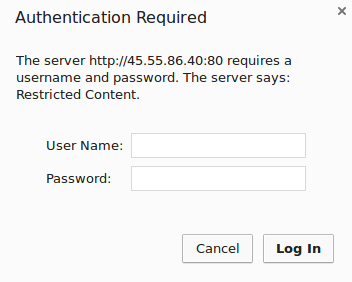
Nginx password prompt

If you enter the correct credentials, you will be allowed to access the content. If you enter the wrong credentials or hit “Cancel”, you will see the “Authorization Required” error page:
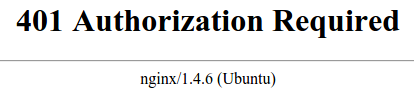
Nginx unauthorized error


link

آموزش افزایش سایز دیسک اوبونتو سرور نصب شده روی VM

زمان مطالعه: 3 دقیقه

با سلام و درود، همیشه سعی کنید همون ابتدا که میخواید به ماشین برای سرور خودتون بسازید حجم رو به درستی پیش بینی کنید که در اواسط مجبور به افزایش دادن فضای دیسک اوبونتوی نصب شده روی VMنشوید، در هر صورت امکان داره مجبور به افزایش حجم دیسک بشید که در ادامه آموزشش رو براتون دادم.

ابتدا باید فضای دیسک را از سمت VmWare افزایش دهید، فقط توجه داشته باشید در صورت افزایش فضای دیسک در VM، دیسک شما به شکل زیر خواهد شد:

۱- افزایش حجم دیسک در VM

۱- برای این کار ابتدا ماشین خود را که قصد افزایش حجم دیسک آن را دارید، خاموش کنید.

۲- حال وارد setting ماشین خود شده و دیسک آن را به مقدار مورد نظر خودتان افزایش دهید.

نکته: اگر قسمت هارد دیسک غیر فعال (خاکستری بود)، مطمین شوید هیچ snapshot روی ماشین مورد نظر نداشته باشید و IDE روی ماشین فعال نباشد.

۳- مجدد ماشین خود را start کنید.

۴- به ماشین خودتان از طریق کنسول و root لاگین کنید.

۲- افزایش فضای دیسک سمت اوبونتو سرور

۱- ابتدا با دستور زیر فضای دیسک را بررسی کنید:


1

fdisk -l

با توجه به تصویر فوق مشاهده می کنید که ماشین من ۳۰ گیگ داشت که ۲۲۰ گیگ جدید رو قصد دارم بهش اضافه کنم. که در کل میشه ۲۵۰ گیگ

۲- حال دستور زیر را اجرا کنید:


1

fdisk /dev/sda

حال n را برای ساخت پارتیشن جدید بزنید و سپس شماره ی پارتیشن که برای من ۴ می شد (sda4) و در انتها w برای write کردن تغییرات (امکان داره از شما چند تا گزینه دیگه مانند start blockو غیره هم بپرسته که حالت پیشفرض را انتخاب کنید)

نکته : اگر Hex code (type L to list codes): را پرسید، 8e را وارد کنید.


1

Hex code (type L to list codes): 8e

۳- سیستم را ریبوت کنید.

۴- حال دستور pvcreate را بزنید (با این دستور فیزیکال وولیوم را می سازید):


1

 sudo pvcreate /dev/sda4

2

3

  output:

4

    Physical volume "/dev/sda4" successfully created.

۵- برای بدست آوردن نام volume group فعلی، دستور زیر را بزنید:


1

vgdisplay

۶- برای توسعه دادن volume groupاز دستور زیر استفاده کنید (sda4 را به آن اضافه کنید):


1

sudo vgextend ubuntu-vg /dev/sda4

۷- حال برای بدست آوردن مسیر lv از دستور زیر استفاده کنید (Logical Volume path):


1

sudo lvdisplay

۸- حال برای توسعه دادن Logical Volume و افوزدن sda4 به آن، از دستور زیر استفاده کنید:


1

sudo lvextend /dev/ubuntu-vg/ubuntu-lv /dev/sda4

2

3

output:

4

    Size of logical volume ubuntu-vg/ubuntu-lv changed from 20.00 GiB (5120 extents) to <240.00 GiB (61439 extents).

5

  Logical volume ubuntu-vg/ubuntu-lv successfully resized.

6

۹- از دستور زیر برای بروزرسانی Logical Volumeاستفاده کنید:


1

sudo resize2fs /dev/ubuntu-vg/ubuntu-lv

۱۰ – در انتهای از دستور df -hبرای مشاهده تغییرات اعمال شده استفاده کنید:

همانطور که مشاهده می کنید، از ۳۰ گیگ به ۲۵۰ گیگ رسیدیم و پایان آموزش.

مرجع ۱ – مرجع۲ – مرجع ۳


مرجع اصلی

How to Get Let's Encrypt SSL on Ubuntu 20.04

https://serverspace.io/support/help/how-to-get-lets-encrypt-ssl-on-ubuntu/


SSL/TLS encryption is an integral part of the network infrastructure. Any web and mail server allows you to enable data encryption. In this article, we will look at the process of obtaining a free SSL certificate Let's Encrypt.

Cloud ServersIntel Xeon Gold 6254 3.1 GHz CPU, SLA 99,9%, 100 Mbps channelfrom4 EUR/monthTRY

As initial conditions, you must have a domain name. Its DNS A-record must contain the public address of your server. If the firewall is enabled, open access for HTTP and HTTPS traffic.

sudo ufw allow 80
sudo ufw allow 443

Step 1 – Installing the "Let's Encrypt" package

The process of installing the "Let's Encrypt" package with all its dependencies is extremely simple. To do this, enter the command:

sudo apt install letsencrypt

Along with the "Let's Encrypt" package, this command also installs the "certbot.timer" utility for automatic certificate renewal. It checks the validity of SSL certificates in the system twice a day and extends those that expire in the next 30 days. To make sure that it is running, enter:

sudo systemctl status certbot.timer
There are different configurations and conditions for obtaining a certificate. Let's look at some of them.

Step 2 – Standalone server for getting the "Let's Encrypt" SSL certificate

The easiest way to get an ssl certificate is to use a standalone option in Certbot. Replace domain-name.com with your domain name, run the command, and follow the instructions:

sudo certbot certonly --standalone --agree-tos --preferred-challenges http -d domain-name.com

The certonly option means that the certificate will only be obtained without installation on any web server, standalone allows you to start your own web server for authentication, agree-tos means acceptance of the ACME server subscription agreement, which is a prerequisite, and preferred-challenges http means performing authorization using HTTP.

Step 3 – Automatic installation of the SSL certificate on nginx and Apache web servers

Certbot can automatically install the certificate on nginx and Apache web servers. To do this, you need to install an additional package and choose the appropriate one for your web server.

apt install python3-certbot-nginx
apt install python3-certbot-apache

Run this command for nginx:

sudo certbot --nginx --agree-tos --preferred-challenges http -d domain-name.com

Or this for Apache:

sudo certbot --apache --agree-tos --preferred-challenges http -d domain-name.com

Follow the instructions and Certbot will install an SSL certificate for you.

Step 4 – "Let's Encrypt" Wildcard SSL certificate

To create a wildcard certificate, the only possible challenge method is DNS. In the d parameter, you must specify both the bare domain and wildcard.

sudo certbot certonly --manual --agree-tos --preferred-challenges dns -d domain-name.com -d *.domain-name.com

After that, place the specified TXT record on your DNS server and click continue.

If everything is well, you will see the path where your new wildcard certificate is stored and some other information.

Update: Using Free Let’s Encrypt SSL/TLS Certificates with NGINX

Editor – The blog post detailing the original procedure for using Let’s Encrypt with NGINX (from February 2016) redirects here. The instructions in that post are deprecated.

This post has been updated to eliminate reliance on certbot‑auto, which the Electronic Frontier Federation (EFF) deprecated in Certbot 1.10.0 for Debian and Ubuntu and in Cerbot 1.11.0 for all other operating systems. For additional details and alternate installation methods, see this post from the EFF.

Also see our blog post from nginx.conf 2015, in which Peter Eckersley and Yan Zhu of the Electronic Frontier Foundation introduce the then‑new Let’s Encrypt certificate authority.

It’s well known that SSL/TLS encryption of your website leads to higher search rankings and better security for your users. However, there are a number of barriers that have prevented website owners from adopting SSL.

Two of the biggest barriers have been the cost and the manual processes involved in getting a certificate. But now, with Let’s Encrypt, they are no longer a concern. Let’s Encrypt makes SSL/TLS encryption freely available to everyone.

Let’s Encrypt is a free, automated, and open certificate authority (CA). Yes, that’s right: SSL/TLS certificates for free. Certificates issued by Let’s Encrypt are trusted by most browsers today, including older browsers such as Internet Explorer on Windows XP SP3. In addition, Let’s Encrypt fully automates both issuing and renewing of certificates.

In this blog post, we cover how to use the Let’s Encrypt client to generate certificates and how to automatically configure NGINX Open Source and NGINX Plus to use them.

How Let’s Encrypt Works

Before issuing a certificate, Let’s Encrypt validates ownership of your domain. The Let’s Encrypt client, running on your host, creates a temporary file (a token) with the required information in it. The Let’s Encrypt validation server then makes an HTTP request to retrieve the file and validates the token, which verifies that the DNS record for your domain resolves to the server running the Let’s Encrypt client.

Prerequisites

Before starting with Let’s Encrypt, you need to:

  • Have NGINX or NGINX Plus installed.
  • Own or control the registered domain name for the certificate. If you don’t have a registered domain name, you can use a domain name registrar, such as GoDaddy or dnsexit.
  • Create a DNS record that associates your domain name and your server’s public IP address.

Now you can easily set up Let’s Encrypt with NGINX Open Source or NGINX Plus (for ease of reading, from now on we’ll refer simply to NGINX).

Note: We tested the procedure outlined in this blog post on Ubuntu 16.04 (Xenial).

1. Download the Let’s Encrypt Client

First, download the Let’s Encrypt client, certbot.

As mentioned just above, we tested the instructions on Ubuntu 16.04, and these are the appropriate commands on that platform:

$ apt-get update
$ sudo apt-get install certbot
$ apt-get install python-certbot-nginx

With Ubuntu 18.04 and later, substitute the Python 3 version:

$ apt-get update
$ sudo apt-get install certbot
$ apt-get install python3-certbot-nginx


2. Set Up NGINX

certbot can automatically configure NGINX for SSL/TLS. It looks for and modifies the server block in your NGINX configuration that contains a server_name directive with the domain name you’re requesting a certificate for. In our example, the domain is www.example.com.

  1. Assuming you’re starting with a fresh NGINX install, use a text editor to create a file in the /etc/nginx/conf.d directory named domain‑name.conf (so in our example, www.example.com.conf).

  2. Specify your domain name (and variants, if any) with the server_name directive:

    server {
        listen 80 default_server;
        listen [::]:80 default_server;
        root /var/www/html;
        server_name example.com www.example.com;
    }
  3. Save the file, then run this command to verify the syntax of your configuration and restart NGINX:

    $ nginx -t && nginx -s reload

3. Obtain the SSL/TLS Certificate

The NGINX plug‑in for certbot takes care of reconfiguring NGINX and reloading its configuration whenever necessary.

When certificate generation completes, NGINX reloads with the new settings. certbot generates a message indicating that certificate generation was successful and specifying the location of the certificate on your server.

Congratulations! You have successfully enabled https://example.com and https://www.example.com 

-------------------------------------------------------------------------------------
IMPORTANT NOTES: 

Congratulations! Your certificate and chain have been saved at: 
/etc/letsencrypt/live/example.com/fullchain.pem 
Your key file has been saved at: 
/etc/letsencrypt/live/example.com//privkey.pem
Your cert will expire on 2017-12-12.

Note: Let’s Encrypt certificates expire after 90 days (on 2017-12-12 in the example). For information about automatically renenwing certificates, see Automatic Renewal of Let’s Encrypt Certificates below.

  1. Run the following command to generate certificates with the NGINX plug‑in:

    $ sudo certbot --nginx -d example.com -d www.example.com
  2. Respond to prompts from certbot to configure your HTTPS settings, which involves entering your email address and agreeing to the Let’s Encrypt terms of service.

If you look at domain‑name.conf, you see that certbot has modified it:

server {
    listen 80 default_server;
    listen [::]:80 default_server;
    root /var/www/html;
    server_name  example.com www.example.com;

    listen 443 ssl; # managed by Certbot

    # RSA certificate
    ssl_certificate /etc/letsencrypt/live/example.com/fullchain.pem; # managed by Certbot
    ssl_certificate_key /etc/letsencrypt/live/example.com/privkey.pem; # managed by Certbot

    include /etc/letsencrypt/options-ssl-nginx.conf; # managed by Certbot

    # Redirect non-https traffic to https
    if ($scheme != "https") {
        return 301 https://$host$request_uri;
    } # managed by Certbot
}

4. Automatically Renew Let’s Encrypt Certificates

Let’s Encrypt certificates expire after 90 days. We encourage you to renew your certificates automatically. Here we add a cron job to an existing crontab file to do this.

Summary

We’ve installed the Let’s Encrypt agent to generate SSL/TLS certificates for a registered domain name. We’ve configured NGINX to use the certificates and set up automatic certificate renewals. With Let’s Encrypt certificates for NGINX and NGINX Plus, you can have a simple, secure website up and running within minutes.

To try out Let’s Encrypt with NGINX Plus yourself, start your free 30-day trial today or contact us to discuss your use cases.

  1. Open the crontab file.

    $ crontab -e
  2. Add the certbot command to run daily. In this example, we run the command every day at noon. The command checks to see if the certificate on the server will expire within the next 30 days, and renews it if so. The --quiet directive tells certbot not to generate output.

    0 12 * * * /usr/bin/certbot renew --quiet
  3. Save and close the file. All installed certificates will be automatically renewed and reloaded.

How to Configure Nginx to serve Multiple Websites on a Single VPS

Introduction

This article details how to configure Virtual Hosting for Nginx. If you are looking for a guide for Apache, click here.

There are several reasons you may want to host multiple websites on a single server. If you are using a dedicated server / VPS and want to host multiple applications on a separate domain and a single server then you will need to host multiple websites on a single server. You can achieve this with Apache / Nginx virtual hosting. Virtual hosting allows you to use a single VPS to host all your domains. So hosting multiple websites on a single VPS server using Virtual hosting is the best solution for you to reduce the hosting cost.

There is, in theory, no limit to the number of sites that you can host on your VPS with Apache or Nginx. But, make sure that your server has enough disk space, CPU and RAM.

In this tutorial, we will learn how to set up multiple websites on an Ubuntu VPS with Nginx.

Webdock does not recommend you use our servers for shared hosting as it can cause a range of issues and stops you from using some of our management tools, namely our easy Let's Encrypt / Certbot management for SSL Certificates and Wordpress management. Click here to read why we think you should really use a single VPS for each website / app.

Please note: Doing these actions may bring down your server. Do not do this on a live site without knowing the potential consequences.

Prerequisites

  • A fresh Webdock cloud Ubuntu instance with LEMP installed.
  • Two valid domain names are pointed with your VPS IP address. In this tutorial, we will use web1.webdock.io and web2.webdock.io.
  • You have shell (SSH) access to your VPS.

Note : You can refer the Webdock DNS Guide to manage the DNS records.

Configure Nginx to Host Multiple Websites

In this section, we will show you how to host two websites named web1.webdock.io and web2.webdock.io on a single Ubuntu VPS with Nginx webserver.

Create Directory Structure

Before starting, make sure LEMP stack is installed on your VPS. You can check the Nginx server status with the following command:

systemctl status nginx

Best method to host multiple websites is to create a separate document root directory and configuration file for each website. So, you will need to create a directory structure for both websites inside Nginx web root:

To do so, run the following command for each website:

mkdir /var/www/html/web1.webdock.io
mkdir /var/www/html/web2.webdock.io

Next, you will need to create sample website content for each website:

First, create a index.html file for web1.webdock.io website:

nano /var/www/html/web1.webdock.io/index.html

Add the following html markup which will be served when you connect to the site:

web1.webdock.io

Welcome to the web1.webdock.io with Nginx webserver.

Save and close the file.

Next, create a index.html file for web2.webdock.io website:

nano /var/www/html/web2.webdock.io/index.html

Add the following html markup which will be served when you connect to the site:

web2.webdock.io

Welcome to the web2.webdock.io with Nginx webserver.

Save and close the file. Then, change the ownership of both website directories to www-data:

chown -R www-data:www-data /var/www/html/web1.webdock.io
chown -R www-data:www-data /var/www/html/web2.webdock.io

Create Virtual Configuration

Next, you will need to create a virtual host configuration file for each website that indicate how the Nginx web server will respond to various domain requests.

First, create a virtual host configuration file for the web1.webdock.io website:

nano /etc/nginx/sites-available/web1.webdock.io.conf

Add the following lines:

server {
        listen 80;
        listen [::]:80;
        root /var/www/html/web1.webdock.io;
        index index.html index.htm;
        server_name web1.webdock.io;

   location / {
       try_files $uri $uri/ =404;
   }

}

Save and close the file. Then, create a virtual host configuration file for the web2.webdock.io website:

nano /etc/nginx/sites-available/web2.webdock.io.conf

Add the following lines:

server {
        listen 80;
        listen [::]:80;
        root /var/www/html/web2.webdock.io;
        index index.html index.htm;
        server_name web2.webdock.io;

   location / {
       try_files $uri $uri/ =404;
   }

}

Save and close the file. Then, enable each virtual host with the following command:

ln -s /etc/nginx/sites-available/web1.webdock.io.conf /etc/nginx/sites-enabled/
ln -s /etc/nginx/sites-available/web2.webdock.io.conf /etc/nginx/sites-enabled/

Next, check Nginx for any syntax error with the following command:

nginx -t

If everything goes fine, you should get the following output:

nginx: the configuration file /etc/nginx/nginx.conf syntax is ok
nginx: configuration file /etc/nginx/nginx.conf test is successful

Finally, restart the Nginx service to apply the configuration changes:

systemctl restart nginx

Test Your Websites

Now, open your web browser and type the URL http://web1.webdock.io and http://web2.webdock.io. You should see both websites with the content we have created earlier:

web1.webdock.io

page1.png

web2.webdock.io

page2.png


Unzip decompression occurs in Linux, mismatching "local" filename and continuing with "central" file

Mismatching "local" filename and continuing with "central" filename version appear in unzip decompression in Linux, which is a Chinese garbled problem. There is a Chinese-named file in the compressed file, and garbled characters appear after decompression.

Solution: Specify the uncompressed file format: unzip -qO UTF-8 front.zip, specify utf-8 format, or specify other formats, there will be no garbled characters

How to block an IP address with ufw on Ubuntu Linux server

ufw block specific IP address

The syntax is:
sudo ufw deny from {ip-address-here} to any
To block or deny all packets from 192.168.1.5, enter:
sudo ufw deny from 192.168.1.5 to any

Block an IP address ufw

Instead of deny rule we can reject connection from any IP as follows:
sudo ufw reject from 202.54.5.7 to any
You use reject when you want the other end (attacker) to know the port or IP is unreachable. However, we use deny for connections to attackers (hosts) you don’t want people to see at all. In other words the reject sends a reject response to the source, while the deny (DROP) target sends nothing at all.

Show firewall status including your rules

Verify newly added rules, enter:
$ sudo ufw status numbered
OR
$ sudo ufw status

Fig.01: ufw firewall status

Fig.01: ufw firewall status

ufw block specific IP and port number

The syntax is:
ufw deny from {ip-address-here} to any port {port-number-here}
To block or deny spammers IP address 202.54.1.5 to port 80, enter:
sudo ufw deny from 202.54.1.5 to any port 80
Again verify with the following command:
$ sudo ufw status numbered
Sample outputs:

Status: active
 
	 To                         Action      From
	 --                         ------      ----
[ 1] 192.168.1.10 80/tcp        ALLOW       Anywhere
[ 2] 192.168.1.10 22/tcp        ALLOW       Anywhere
[ 3] Anywhere                   DENY        192.168.1.5
[ 4] 80                         DENY IN     202.54.1.5

ufw deny specific IP, port number, and protocol

The syntax is:
sudo ufw deny proto {tcp|udp} from {ip-address-here} to any port {port-number-here}
For example block hacker IP address 202.54.1.1 to tcp port 22, enter:
$ sudo ufw deny proto tcp from 202.54.1.1 to any port 22
$ sudo ufw status numbered

ufw block subnet

The syntax is same:
$ sudo ufw deny proto tcp from sub/net to any port 22
$ sudo ufw deny proto tcp from 202.54.1.0/24 to any port 22

How do I delete blocked IP address or unblock an IP address again?

The syntax is:
$ sudo ufw status numbered
$ sudo ufw delete NUM
To delete rule number # 4, enter:
$ sudo ufw delete 4
Sample outputs:

Ad

Deleting:
 deny from 202.54.1.5 to any port 80
Proceed with operation (y|n)? y
Rule deleted

Tip: UFW NOT blocking an IP address

UFW (iptables) rules are applied in order of appearance, and the inspection ends immediately when there is a match. Therefore, for example, if a rule is allowing access to tcp port 22 (say using sudo ufw allow 22), and afterward another Rule is specified blocking an IP address (say using ufw deny proto tcp from 202.54.1.1 to any port 22), the rule to access port 22 is applied and the later rule to block the hacker IP address 202.54.1.1 is not. It is all about the order. To avoid such problem you need to edit the /etc/ufw/before.rules file and add a section to “Block an IP Address” after “# End required lines” section.
$ sudo vi /etc/ufw/before.rules
Find line that read as follows:

# End required lines

Append your rule to block spammers or hackers:

# Block spammers 
-A ufw-before-input -s 178.137.80.191 -j DROP
# Block ip/net (subnet) 
-A ufw-before-input -s 202.54.1.0/24 -j DROP

Save and close the file. Finally, reload the firewall:
$ sudo ufw reload
As noted below in the comment section, we can skip the whole process and use the following simple syntax:
$ sudo ufw insert 1 deny from {BADIPAddress-HERE}
$ sudo ufw insert 1 deny from 178.137.80.191 comment 'block spammer'
$ sudo ufw insert 1 deny from 202.54.1.0/24 comment 'Block DoS attack subnet'

Blocking multiple IP address and subnets (CIDRs) with ufw

We can use different methods to block multiple IP addresses. Let us try using bash for loop as follows to block 5 IP address:

# add subnet too #
IPS="192.168.2.50 1.2.3.4 123.1.2.3 142.1.2.3 202.54.1.5/29"
for i in $IPS
do
    sudo ufw insert 1 deny from "$i" comment "IP and subnet blocked"
done

Another option is to read all IP address from a text file. Create a new text file as follows using cat command:
cat > blocked.ip.list
Append both IPs and sub/nets:

# block list created by nixCraft
203.1.5.6
204.5.1.7
45.146.164.157
2620:149:e0:6002::1f1
185.38.40.66
185.220.101.0/24 

Run it as as follows using bash while loop:

while IFS= read -r block
do 
   sudo ufw insert 1 deny from "$block" 
done < "blocked.ip.list"

https://www.cyberciti.biz/faq/how-to-block-an-ip-address-with-ufw-on-ubuntu-linux-server/

How to Change Hostname on Ubuntu 18.04

Display the Current Hostname

To view the current hostname, enter the following command:

hostnamectl

Ubuntu 18.04 hostnamectl

As you can see in the image above, the current hostname is set to ubuntu1804.localdomain.

Change the Hostname

The following steps outline how to change the hostname in Ubuntu 18.04.

1. Change the hostname using hostnamectl.

In Ubuntu 18.04 we can change the system hostname and related settings using the command hostnamectl.

For example, to change the system static hostname to linuxize, you would use the following command:

sudo hostnamectl set-hostname linuxize

The hostnamectl command does not produce output. On success, 0 is returned, a non-zero failure code otherwise.

2. Edit the /etc/hosts file.

Open the /etc/hosts file and change the old hostname to the new one.

/etc/hosts

127.0.0.1   localhost
127.0.0.1   linuxize

# The following lines are desirable for IPv6 capable hosts
::1     localhost ip6-localhost ip6-loopback
ff02::1 ip6-allnodes
ff02::2 ip6-allrouters

3. Edit the cloud.cfg file.

If the cloud-init package is installed you also need to edit the cloud.cfg file. This package is usually installed by default in the images provided by the cloud providers such as AWS and it is used to handle the initialization of the cloud instances.

To check if the package is installed run the following ls command :

ls -l /etc/cloud/cloud.cfg

If you see the following output it means that the package is not installed and no further action is required.

ls: cannot access '/etc/cloud/cloud.cfg': No such file or directory

If the package is installed the output will look like the following:

-rw-r--r-- 1 root root 3169 Apr 27 09:30 /etc/cloud/cloud.cfg

In this case you’ll need to open the /etc/cloud/cloud.cfg file:

sudo vim /etc/cloud/cloud.cfg

Search for preserve_hostname and change the value from false to true:

/etc/cloud/cloud.cfg

# This will cause the set+update hostname module to not operate (if true)
preserve_hostname: true

Copy

Save the file and close your editor.

Verify the change

To verify that the hostname was successfully changed, once again use the hostnamectl command:

hostnamectl
   Static hostname: linuxize
         Icon name: computer-vm
           Chassis: vm
        Machine ID: 6f17445f53074505a008c9abd8ed64a5
           Boot ID: 1c769ab73b924a188c5caeaf8c72e0f4
    Virtualization: kvm
  Operating System: Ubuntu 18.04 LTS
            Kernel: Linux 4.15.0-22-generic
      Architecture: x86-64

You should see your new server name printed on the console.

Enable Root Login via SSH In Ubuntu

Enable root login over SSH

  1. Login to your server as root.
  2. As the root user, edit the sshd_config file found in /etc/ssh/sshd_config:vim /etc/ssh/sshd_config(For details on working with Vim check out our article here!)
  3. Add the following line to the file, you can add it anywhere but it’s good practice to find the block about authentication and add it there.
    PermitRootLogin yes
  4. Save and exit the file.
  5. Restart the SSH server:systemctl restart sshdorservice sshd restart

And that’s it! With the new line added and the SSH server restarted, you can now connect via the root user. In this instance, you are going to be able to login as the root user utilizing either the password or an ssh key. When using SSH Keys, you can set the PermitRootLogin value to `without-password` instead of yes. To accomplish this, simply modify the following information noted in step 2 above instead:PermitRootLogin without-passwordThis process should work on almost any version of Linux server that the sshd service is installed. If you are using a cPanel server though you can easily control this setting from the WHM interface. In these cases, it’s recommended to modify this setting from your control panel interface.

Installing and Configuring Ubuntu Server 18.04 LTS

Installing and Configuring Ubuntu Server 18.04 LTS

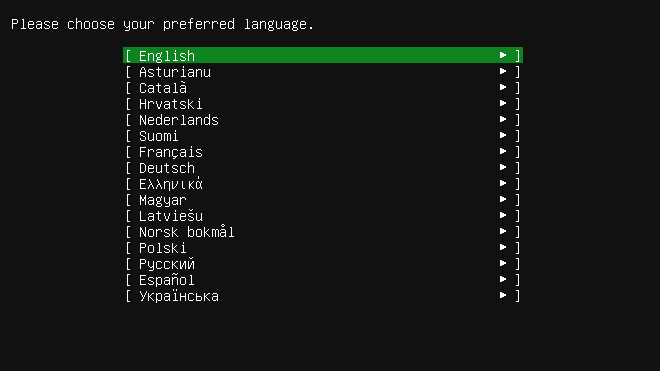
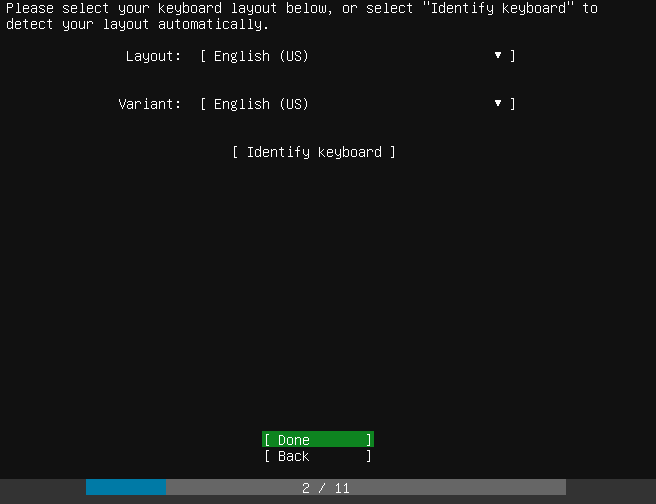
For the purposes of this walk through, I am installing and configuring Ubuntu Server 18.04 LTS inside a vSphere 6.7 virtual machine inside my home lab cluster environment.  I accepted the defaults on creating a new virtual machine inside of vSphere, including the basic disk, memory, CPU, and other footprint.

Installing-and-Configuring-Ubuntu-Server-18.04-LTS-choosing-language Installing and Configuring Ubuntu Server 18.04 LTS

Installing and Configuring Ubuntu Server 18.04 LTS – choosing language


Installing-and-Configuring-Ubuntu-Server-18.04-LTS-choosing-keyboard-layout Installing and Configuring Ubuntu Server 18.04 LTS

Installing and Configuring Ubuntu Server 18.04 LTS – choosing keyboard layout

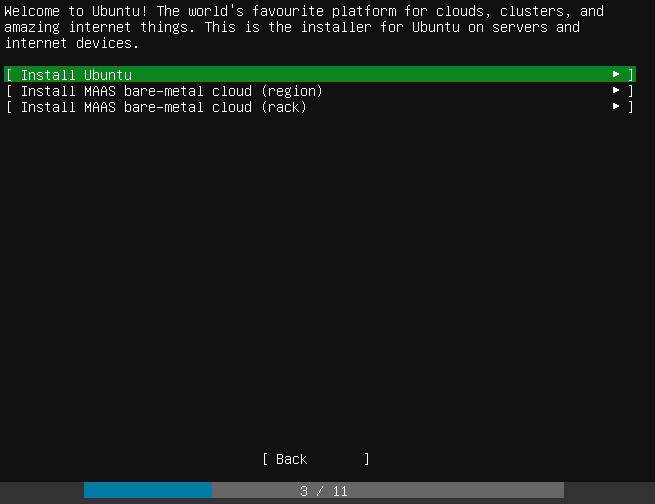
On the type of installer you can select the following:

  • Install Ubuntu
  • Install MAAS bare-metal cloud (region)
  • Install MAAS bare-metal cloud (rack)

What is MAAS? MAAS is Metal As A Service that lets you essentially treat physical servers like virtual machines in teh cloud. Rather than have to manage each server individually, MAAS allow you to manage the bare metal servers as elastic cloud-like resources. This has several advantages such as quickly provisioning and destroying instances as you would in the public cloud like AWS, GCE, and Azure.

Choosing-the-type-of-installation-when-installing-and-configuring-Ubuntu-Server-18.04-LTS Installing and Configuring Ubuntu Server 18.04 LTS

Choosing the type of installation when installing and configuring Ubuntu Server 18.04 LTS


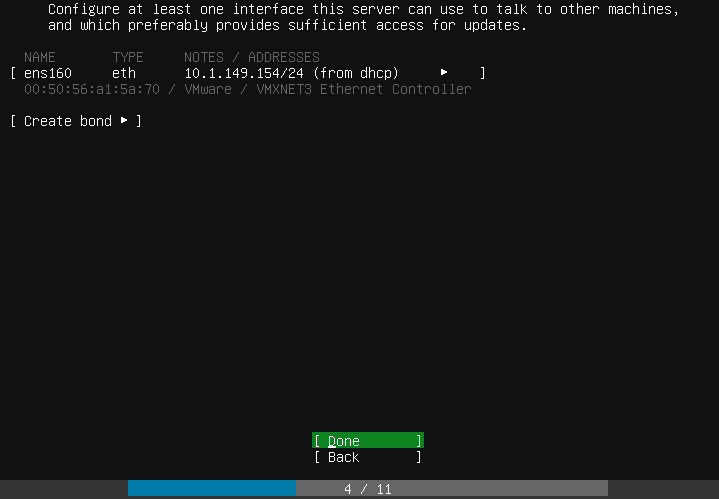
Next is the network configuration.  Here you can choose the configuration of the network connection and even create network bonds.

Configuring-the-network-settings-when-installing-and-configuring-Ubuntu-Server-18.04-LTS Installing and Configuring Ubuntu Server 18.04 LTS

Configuring the network settings when installing and configuring Ubuntu Server 18.04 LTS

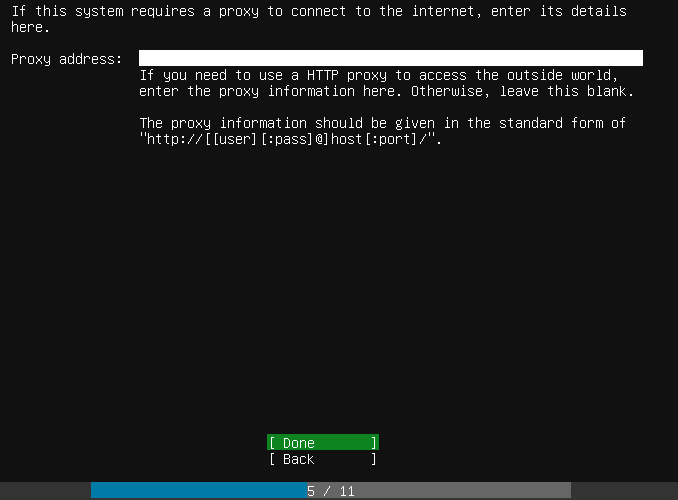
The proxy server address allows configuring the proxy address if your environment requires this for Internet access.

Configuring-a-proxy-server-address-when-installing-and-configuring-Ubuntu-Server-18.04-LTS Installing and Configuring Ubuntu Server 18.04 LTS

Configuring a proxy server address when installing and configuring Ubuntu Server 18.04 LTS

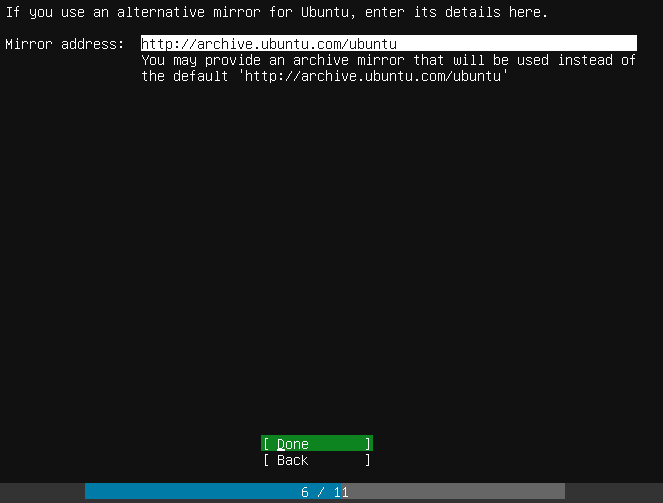
The default mirror addrress is displayed below and for most will work.

Choosing-the-mirror-server-address-during-the-installation-of-Ubuntu-Server-18.04-LTS Installing and Configuring Ubuntu Server 18.04 LTS

Choosing the mirror server address during the installation of Ubuntu Server 18.04 LTS

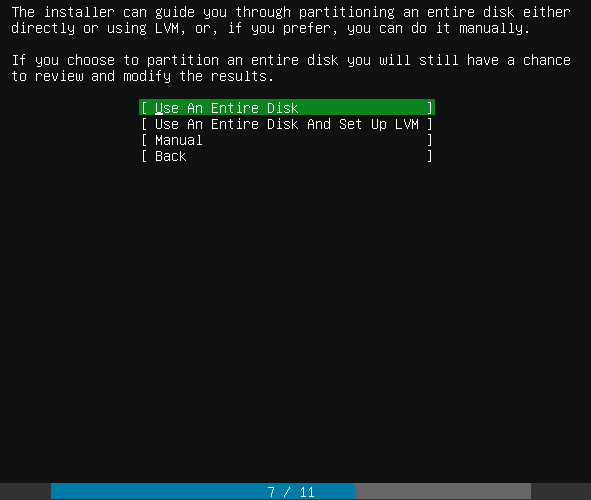
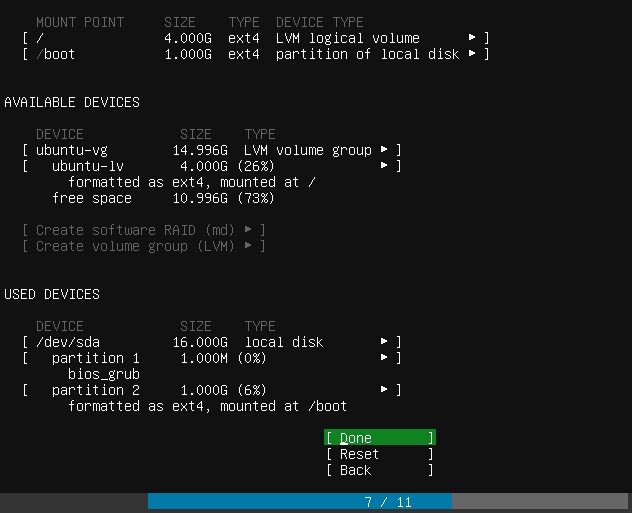
You can choose to change the partitioning mechanism and settings on the partitioning screen.

Selecting-disk-partitioning-options-during-Ubuntu-Server-18.04-LTS-installation-and-configuration Installing and Configuring Ubuntu Server 18.04 LTS

Selecting disk partitioning options during Ubuntu Server 18.04 LTS installation and configuration

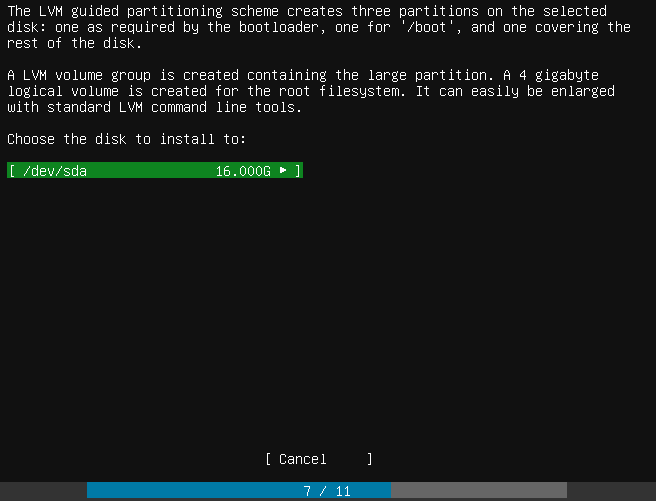
Choose the disk to install Ubuntu Server 18.04 LTS.

LVM-Guided-partitioning-scheme-configuration Installing and Configuring Ubuntu Server 18.04 LTS

LVM Guided partitioning scheme configuration

Finalize the boot partition layout on the disk.

Finalizing-the-boot-partition-layout-to-write-to-disk Installing and Configuring Ubuntu Server 18.04 LTS

Finalizing the boot partition layout to write to disk

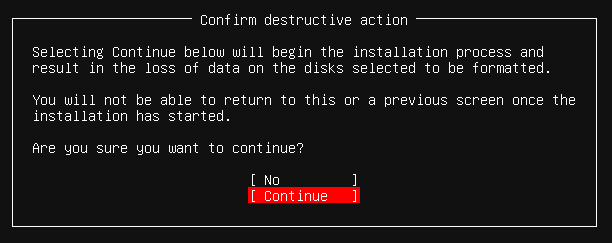
The installer will display a stern warning regarding changes being written to disk and if you are sure you want to destroy the partitions that currently exist.

Confirming-the-writing-of-the-partition-scheme-to-disk-in-Ubuntu-Server-18.04-LTS Installing and Configuring Ubuntu Server 18.04 LTS

Confirming the writing of the partition scheme to disk in Ubuntu Server 18.04 LTS

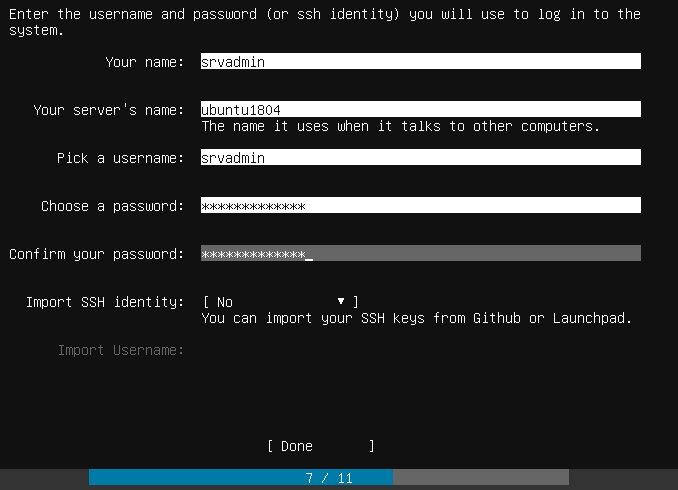
You will be prompted to setup a new user account and configure the Ubuntu Server 18.04 LTS server name.

Setting-up-user-credentials-during-installing-and-configuring-Ubuntu-Server-18.04-LTS Installing and Configuring Ubuntu Server 18.04 LTS

Setting up user credentials during installing and configuring Ubuntu Server 18.04 LTS

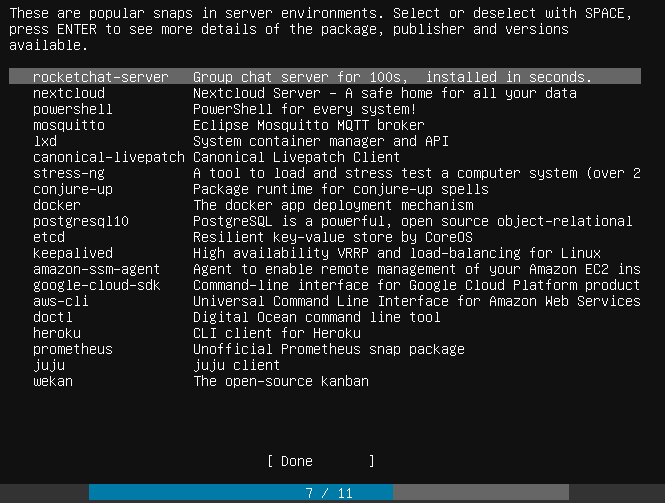
Additionally, there are common “snaps” that you can install during the installation process if you want to add those during the server installation.  These include docker, amazon-ssm-agent, google-cloud-sdk, doctl, etc.

Selecting-popular-SNAPS-to-install-during-Ubuntu-Server-18.04-Installation-and-Configuration Installing and Configuring Ubuntu Server 18.04 LTS

Selecting popular SNAPS to install during Ubuntu Server 18.04 Installation and Configuration

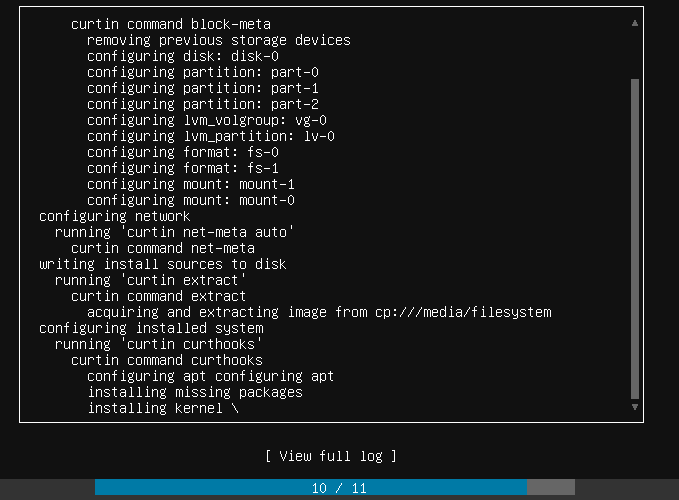
Installation of Ubuntu Server 18.04 LTS begins.

Ubuntu-Server-18.04-LTS-installation-begins Installing and Configuring Ubuntu Server 18.04 LTS

Ubuntu Server 18.04 LTS installation begins

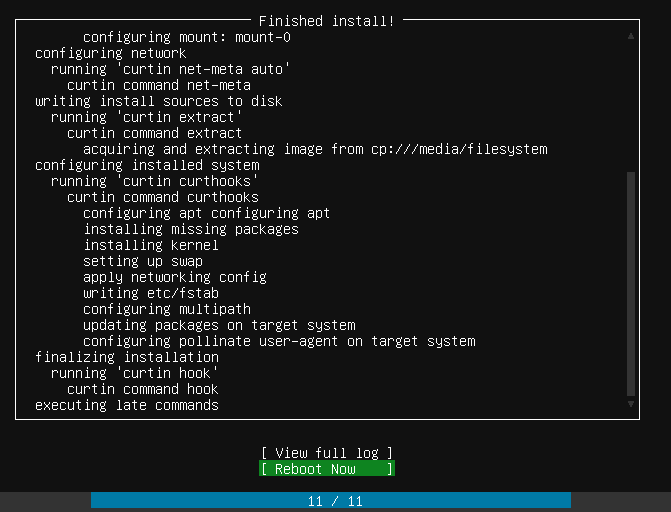
Installation finishes and you are prompted to remove your installation media and reboot.

Rebooting-Ubuntu-Server-18.04-LTS-installation-after-it-finishes Installing and Configuring Ubuntu Server 18.04 LTS

Rebooting Ubuntu Server 18.04 LTS installation after it finishes

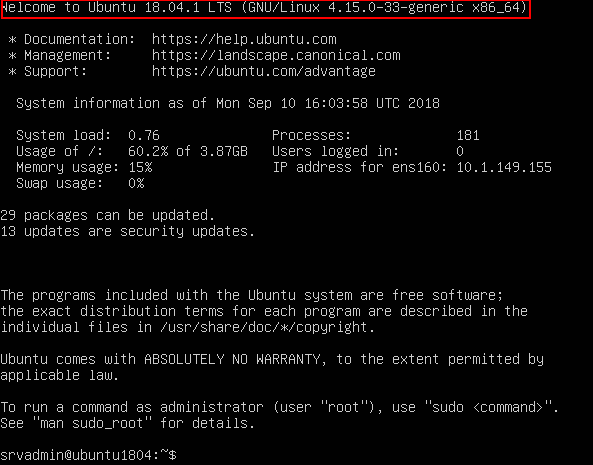
The server should successfully reboot to the Ubuntu 18.04 login screen.

Ubuntu-Server-18.04-LTS-installation-successfully-boots-to-login-prompt Installing and Configuring Ubuntu Server 18.04 LTS

Ubuntu Server 18.04 LTS installation successfully boots to login prompt

There are a few management and configuration tasks that I like to do right from the start such as updating the Ubuntu installation and enabling SSH connections and for me in the home lab – removing cloud-init. First to update the installation this is easily accomplished with a one liner cmd from the Ubuntu shell.

sudo apt-get update && sudo apt-get upgrade

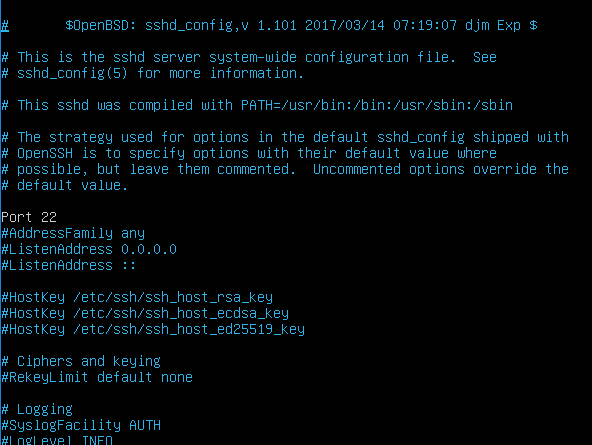
Next, to enable SSH connections, this is a simple matter of uncommenting out the Port 22 directive in the sshd_config file found at /etc/ssh.  Simply edit it and save the file, then restart SSH:

  • service ssh restart

Editing-the-SSHD_CONFIG-file-in-Ubuntu-Server-18.04-LTS-to-enable-SSH-connections Installing and Configuring Ubuntu Server 18.04 LTS

Editing the SSHD_CONFIG file in Ubuntu Server 18.04 LTS to enable SSH connections

To remove cloud-init, I found a good blog post that steps through how to effectively remove this from Ubuntu Server 18.04.

How to Allow SSH root login on Ubuntu 18.04

Set Root Password

By default Ubuntu 18.04 Bionic Beaver installation comes with unset root password. To set root password open up terminal and execute the following linux command. When prompted enter your current user password and new root password:

$ sudo passwd
[sudo] password for linuxconfig: 
Enter new UNIX password: 
Retype new UNIX password: 
passwd: password updated successfully

Enable SSH root login

By default SSH root login is disabled. Any attempt to ssh as root user will result in the following error message:

$ ssh root@10.1.1.9
root@10.1.1.9's password: 
Permission denied, please try again.
root@10.1.1.9's password:

The next command will configure SSH server to allow root ssh login:

$ sudo sed -i 's/#PermitRootLogin prohibit-password/PermitRootLogin yes/' /etc/ssh/sshd_config

Restart SSH server to apply changes:

$ sudo service ssh restart

SSH login as root

Your server now allows SSH login as root user. Use the password you set in the first step:

$ ssh root@10.1.1.9
root@10.1.1.9's password: 
Welcome to Ubuntu Bionic Beaver (GNU/Linux 4.13.0-25-generic x86_64)

Increate max no of open files limit in Ubuntu 16.04/18.04

# maximum capability of system

user@ubuntu:~$ cat /proc/sys/fs/file-max

708444


# available limit

user@ubuntu:~$ ulimit -n

1024


# To increase the available limit to say 200000

user@ubuntu:~$ sudo vim /etc/sysctl.conf


# add the following line to it

fs.file-max = 200000


# run this to refresh with new config

user@ubuntu:~$ sudo sysctl -p


# edit the following file

user@ubuntu:~$ sudo vim /etc/security/limits.conf


# add following lines to it


* soft nofile 200000

* hard nofile 200000

www-data soft nofile 200000

www-data hard nofile 200000

root soft nofile 200000

root hard nofile 200000


# edit the following file

user@ubuntu:~$ sudo vim /etc/pam.d/common-session


# add this line to it

session required pam_limits.so


# logout and login and try the following command

user@ubuntu:~$ ulimit -n

200000

https://gist.github.com/luckydev/b2a6ebe793aeacf50ff15331fb3b519d

How to check Internet Speed via Terminal?

Instead of going to sites like speedtest.net, I want to check my current Internet speed from the terminal on Ubuntu. How can I do it?


I recommend the speedtest-cli tool for this. I created a blog post (Measure Internet Connection Speed from the Linux Command Line) that goes into detail of downloading, installing and usage of it.

The short version is this: (no root required)

curl -s https://raw.githubusercontent.com/sivel/speedtest-cli/master/speedtest.py | python -

Output:

Retrieving speedtest.net configuration...
Retrieving speedtest.net server list...
Testing from Comcast Cable (x.x.x.x)...
Selecting best server based on ping...
Hosted by FiberCloud, Inc (Seattle, WA) [12.03 km]: 44.028 ms
Testing download speed........................................
Download: 32.29 Mbit/s
Testing upload speed..................................................
Upload: 5.18 Mbit/s

Update in 2018:

Using pip install --user speedtest-cli gets you a version that is probably newer than the one available from your distribution's repositories.

Update in 2016:

speedtest-cli is in Ubuntu repositories now. For Ubuntu 16.04 (Xenial) and later use:

sudo apt install speedtest-cli
speedtest-cli

How can I configure a service to run at startup

Since Ubuntu 15.10 (resp. Debian 8 "jessie"), you have to use the following command to configure your service minidlna to run at startup:

sudo systemctl enable minidlna.service

And to disable it again from starting at boot time:

sudo systemctl disable minidlna.service

This works with all service name references that you can find with ls /lib/systemd/system/*.service.


https://askubuntu.com/a/1139269

Find Largest Directories in Linux

If you want to display the biggest directories in the current working directory, run:

# du -a | sort -n -r | head -n 5


https://www.tecmint.com/find-top-large-directories-and-files-sizes-in-linux/

install moodle in apache2 and php7.2 and ubuntu 18

apt-get install php-intl
apt-get install php-soap
apt-get install php-xmlrpc


edit php.ini and remove ; from :
extension=intl

extension=soap

extension=xmlrpc

and restart apache2

install pptpd

https://bobcares.com/blog/install-pptp-server-ubuntu/

no network

https://askubuntu.com/questions/492923/pptpd-vpn-no-internet-access-after-connecting

How to Set DNS Nameservers on Ubuntu 18.04

sudo nano /etc/netplan/01-netcfg.yaml


nameservers:
          addresses: [8.8.8.8, 8.8.4.4]


sudo netplan apply